Email campaigns from the same place as your WhatsApp
Design responsive emails without HTML, send them to the contacts and segments you already have, and see who opened and clicked.
Pricing tailored to your business. Usage is paid from your prepaid Vextro wallet.
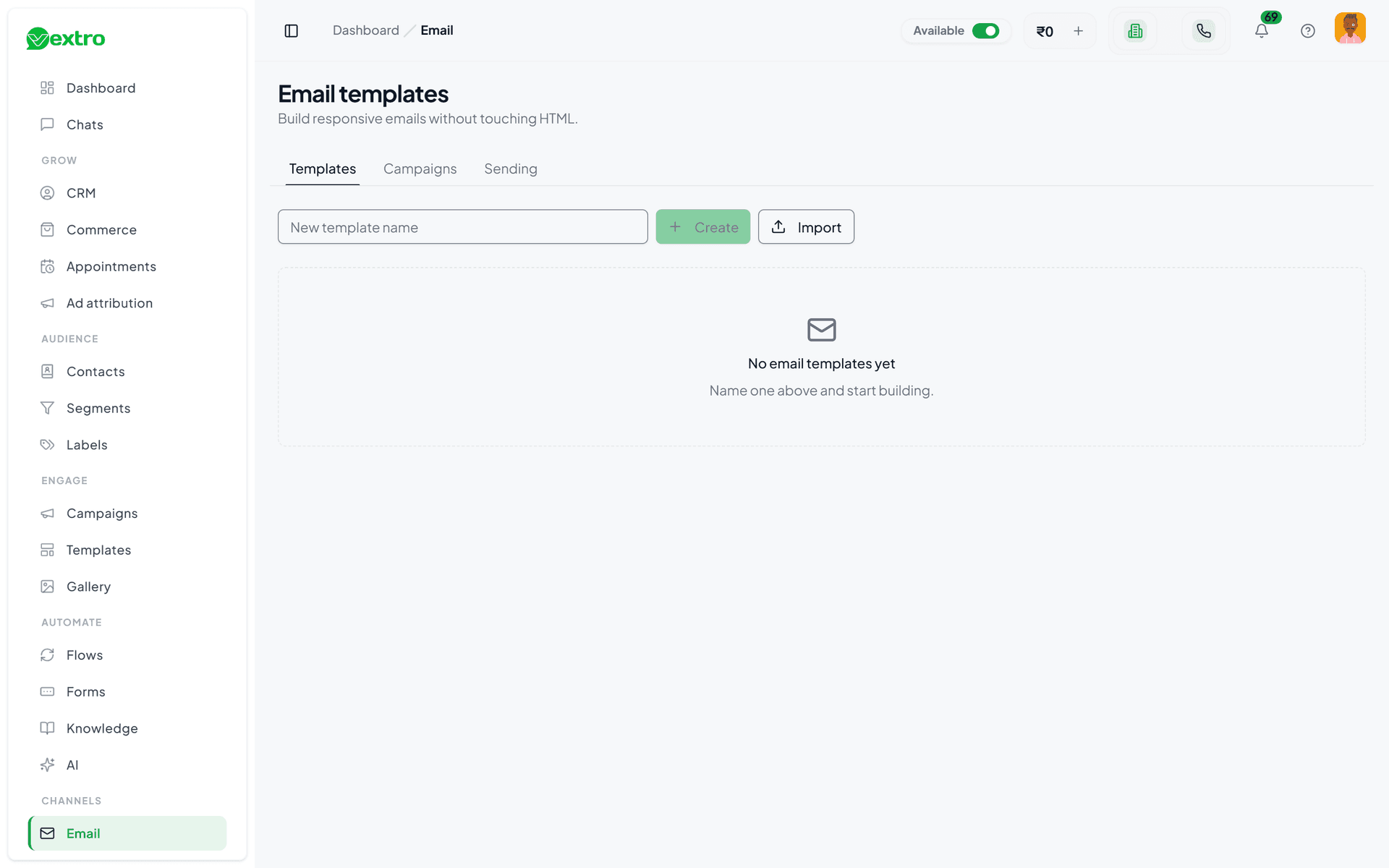
What Email does
Templates, campaigns and reporting, built on the contacts you already keep in Vextro.
Build emails without HTML
A drag-and-drop editor with sections, columns and blocks. Set how each part looks on desktop and on mobile, and drafts save as you work.
- A brand kit with your colours, fonts, logo and button style
- Saved blocks you reuse across templates
- Import and export a template as a file
Personal to every contact
Insert a contact's details and your own custom fields, each with a fallback for contacts who have no value. Preview the email exactly as one of your contacts will receive it.
Checked before it goes out
Publishing runs a preflight that lists every problem at once and points to the block that has it. An email cannot be published without an unsubscribe link.
- Each publish is kept as a version you can restore
- A campaign sends the version you approved, even if the template changes later
Campaigns to the contacts you already have
Send to a saved segment, a lifecycle stage or a label — the same contacts and segments your WhatsApp campaigns use. Or send one published template to one contact.
- Preflight shows everything that would stop a campaign before you start it
- Cancel a running campaign and nothing more is sent
- Every recipient's outcome, with the mail server's own reason when one fails
Opens and clicks you can check
An open log and a click log per campaign, clicks per link, and a split by device and mail client. Opens and clicks that look automatic — mail privacy pre-fetching and link scanners — are kept and flagged, and left out of the people counts.
Unsubscribes handled for you
Every email carries a one-click unsubscribe link and the headers mailbox providers use for their own unsubscribe button. An unsubscribed address goes on your suppression list and is skipped in later campaigns, and the campaign report says how many were skipped.
How you set it up
Four steps, from connecting your mail server to your first campaign.
Connect your mail server
Enter your SMTP server's details. Vextro sends through your own mail server or email provider, from your own address.
Verify it in two steps
Vextro first connects and signs in without sending anything, then sends a test email to an address you choose. The connection is used only after both pass.
Build and publish a template
Design it in the editor, preview it as a real contact, and publish once preflight passes.
Send a campaign
Pick the template and the audience, run the campaign preflight, and start. Results fill in as recipients open and click.
Frequently Asked Questions
Everything you need to know about Vextro and billing.
Add email to your Vextro workspace
Book a setup call and we will connect your mail server with you, or start a 7-day trial and explore it yourself.
Pricing tailored to your business. Usage is paid from your prepaid Vextro wallet.